
Digital exams in locked mode
01Start it like any lesson
Lock, Take an exam, choose an exam. No new platform to learn, no new sign-in for the teacher.
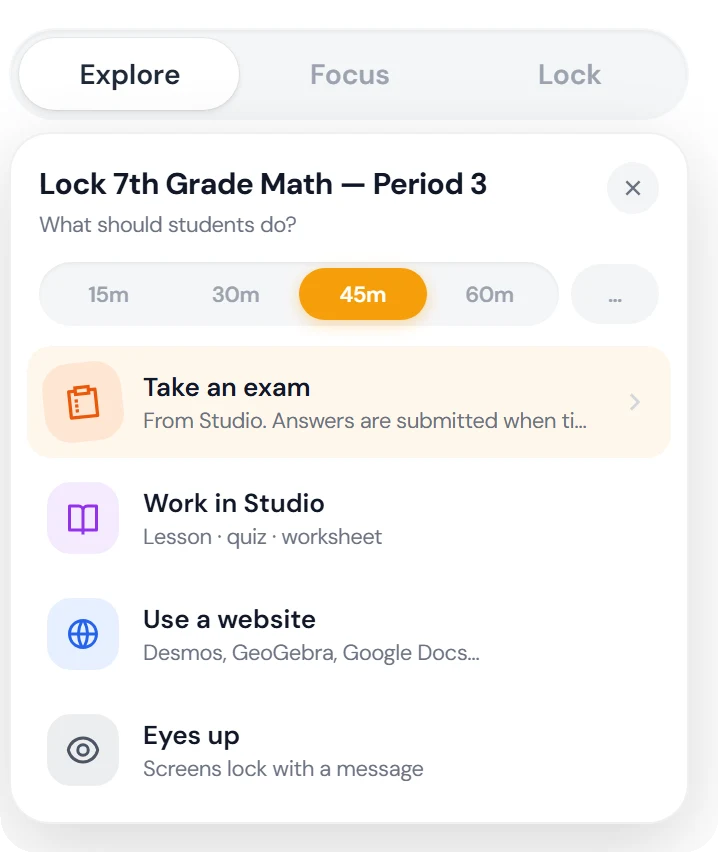
Press Lock
The same button as in every lesson, for the whole class or a group.
Choose Take an exam
The first choice in the menu.
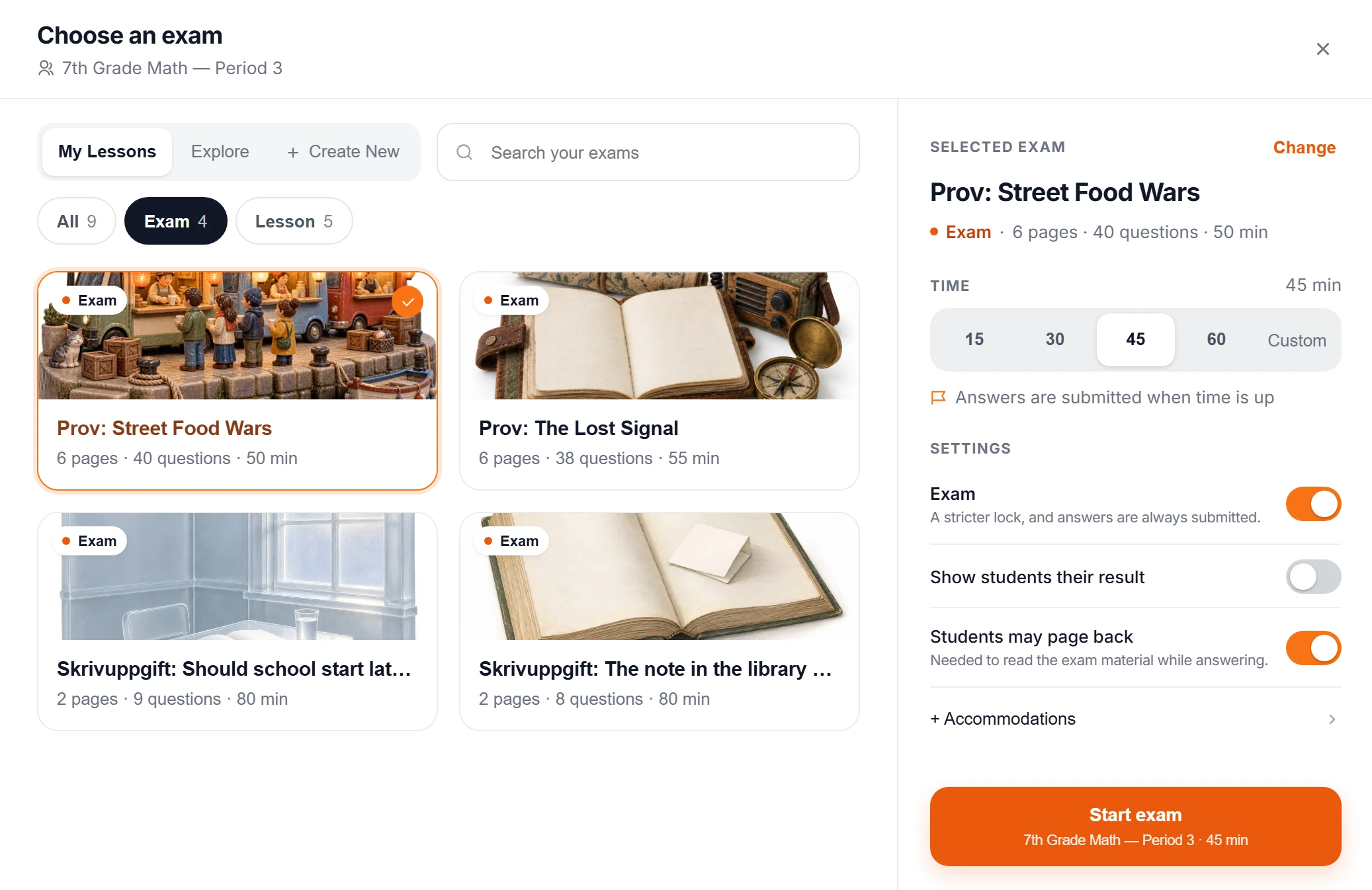
Choose the exam and the time
An exam from your Studio, one from the library, or a writing task you create on the spot.
Start exam
The clock starts for everyone at the same moment.
One clock for the whole class
Time is kept by Viafocus, not by the pupil's computer. You can extend it while the exam is running.
Answers are saved all the time
If a pupil loses the network, the answers stay on the computer and are sent when it is back.
Results only if you want
Pupils see no result until you turn on Show students their result. It starts off.
Accommodations per pupil
Set in the same dialog before the exam starts, for the pupils who need them.
02Locked on the device
On Chromebook the exam runs in a kiosk app. It is the method Skolverket, the Swedish National Agency for Education, calls locked-down mode.
The pupil signs out
The exam starts from the Chromebook's sign-in screen, outside the pupil's usual session.
Picks the exam app and signs in
With the school's usual Google account.
Writes the exam
In kiosk mode there are no tabs, no other apps and no files. Only the exam.
03See the whole class while they write
The same live view as in every lesson. You see who is at the exam computer, how far each pupil has come, and what happens along the way.
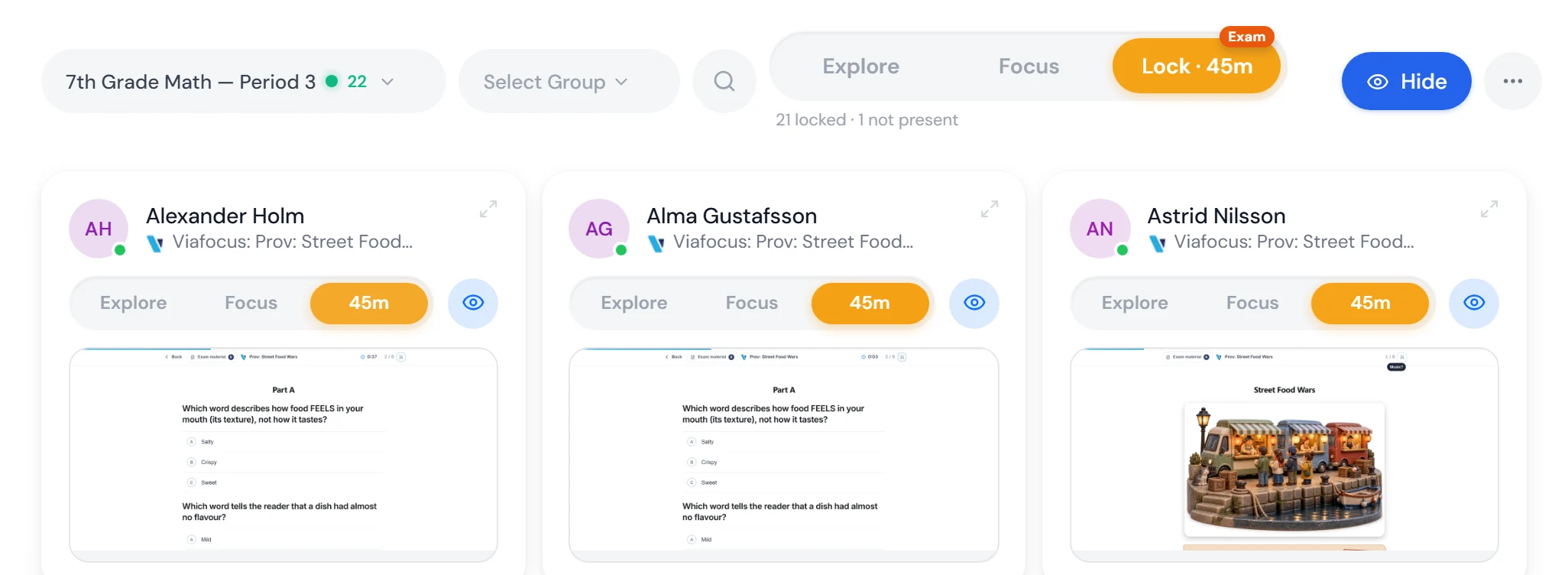
The class in an exam
The Exam badge sits on the Lock button, the roll call is under it, and each pupil's screen shows the exam.
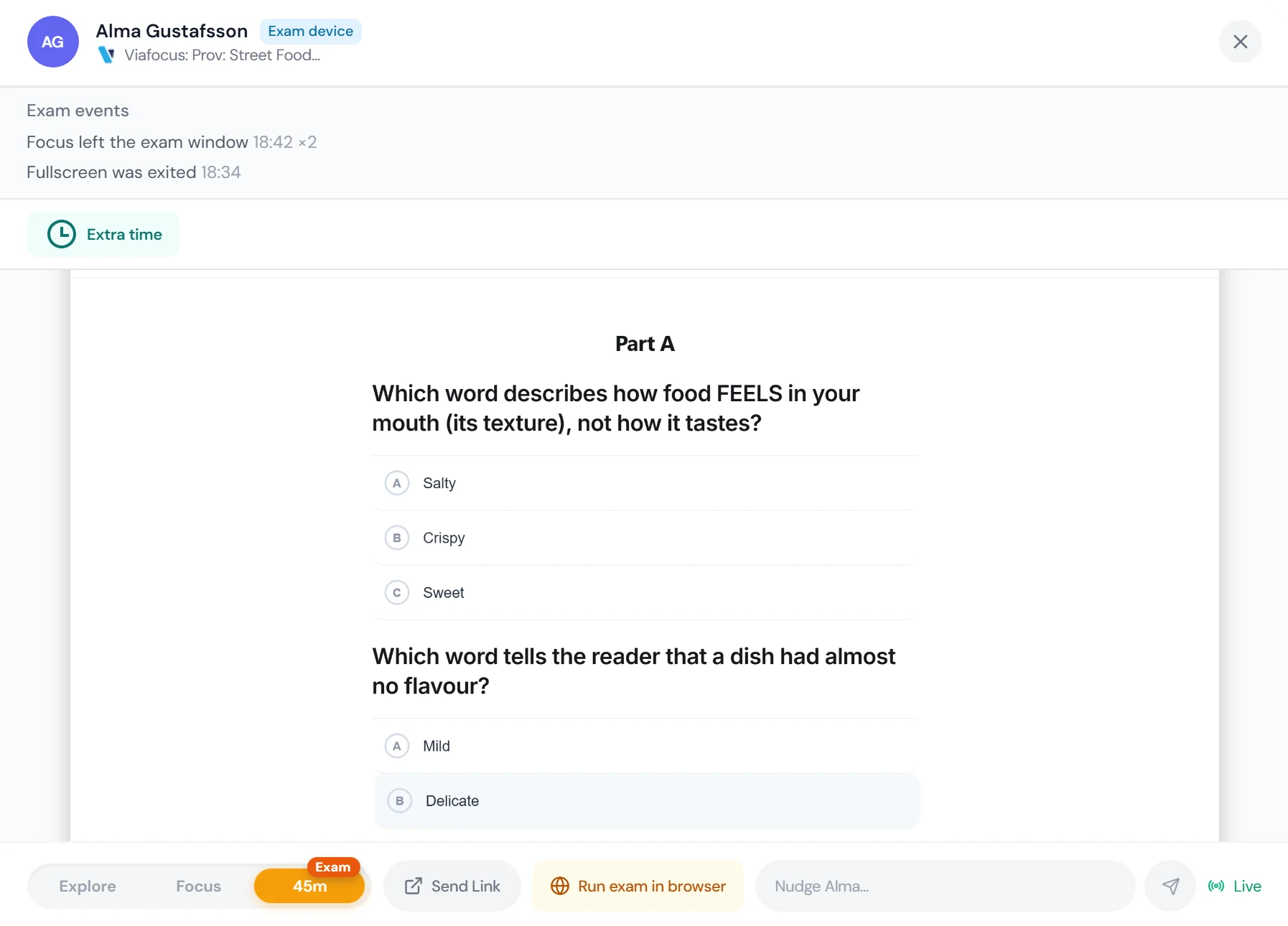
One pupil opened
Exam events with times, Extra time, and Run exam in browser if the computer acts up.
Roll call
Who is at the exam computer and who is missing, before you begin.
Status per pupil
Waiting, starting, page 3 of 6, submitted. One line per pupil.
Events during the exam
A timeline per pupil shows what has happened while the exam is running.
Your controls
Extend the time or end it for everyone. If a computer acts up, that pupil can write the exam in the browser.
04During the exam
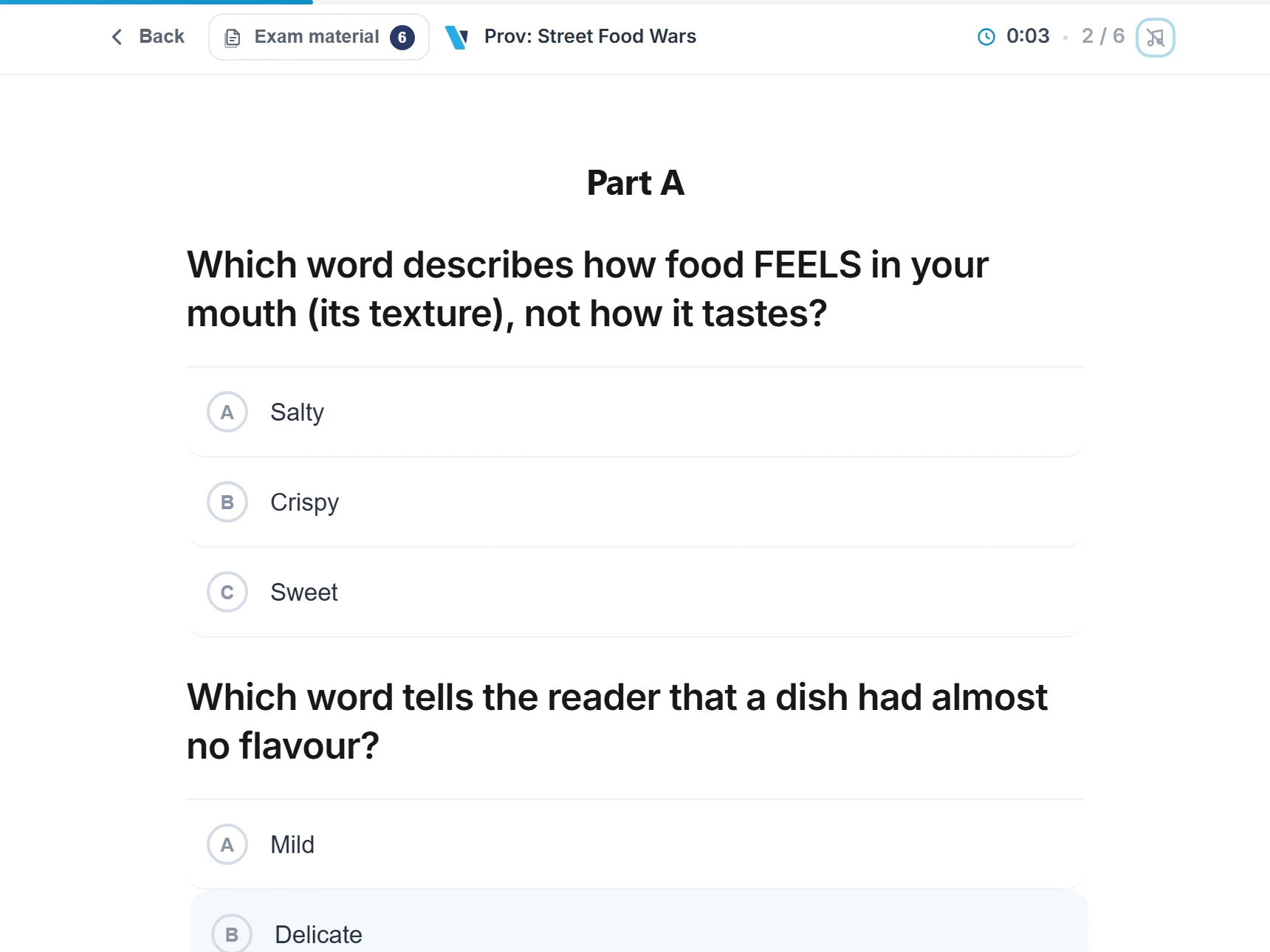
While the exam runs, sits at the top of Studio and of Focuspilot. It takes you between the exam and the class, and on to marking.
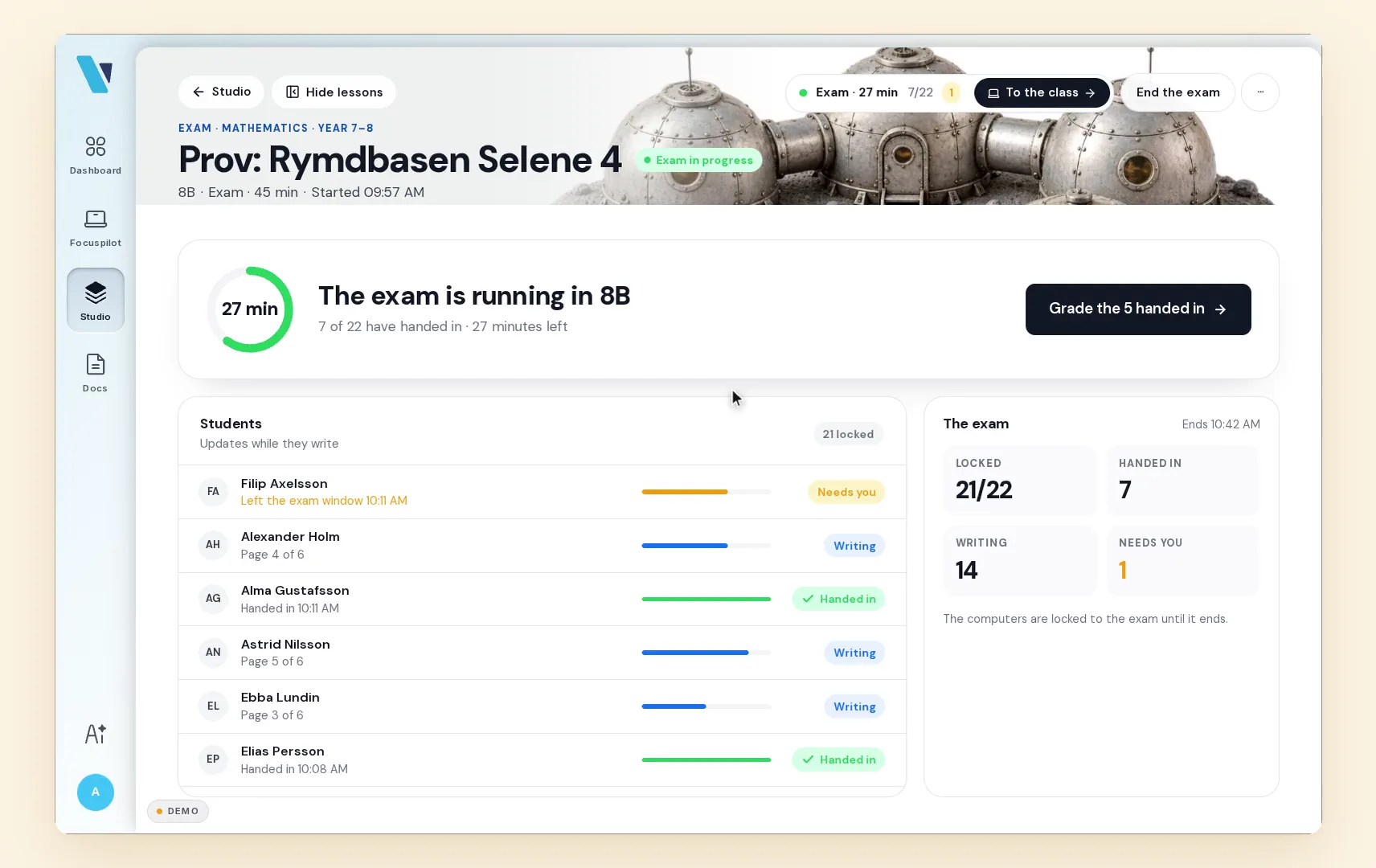
05After the exam
Mark, hand back, save. The same tool all the way to the record for grades, and everything you write saves itself.
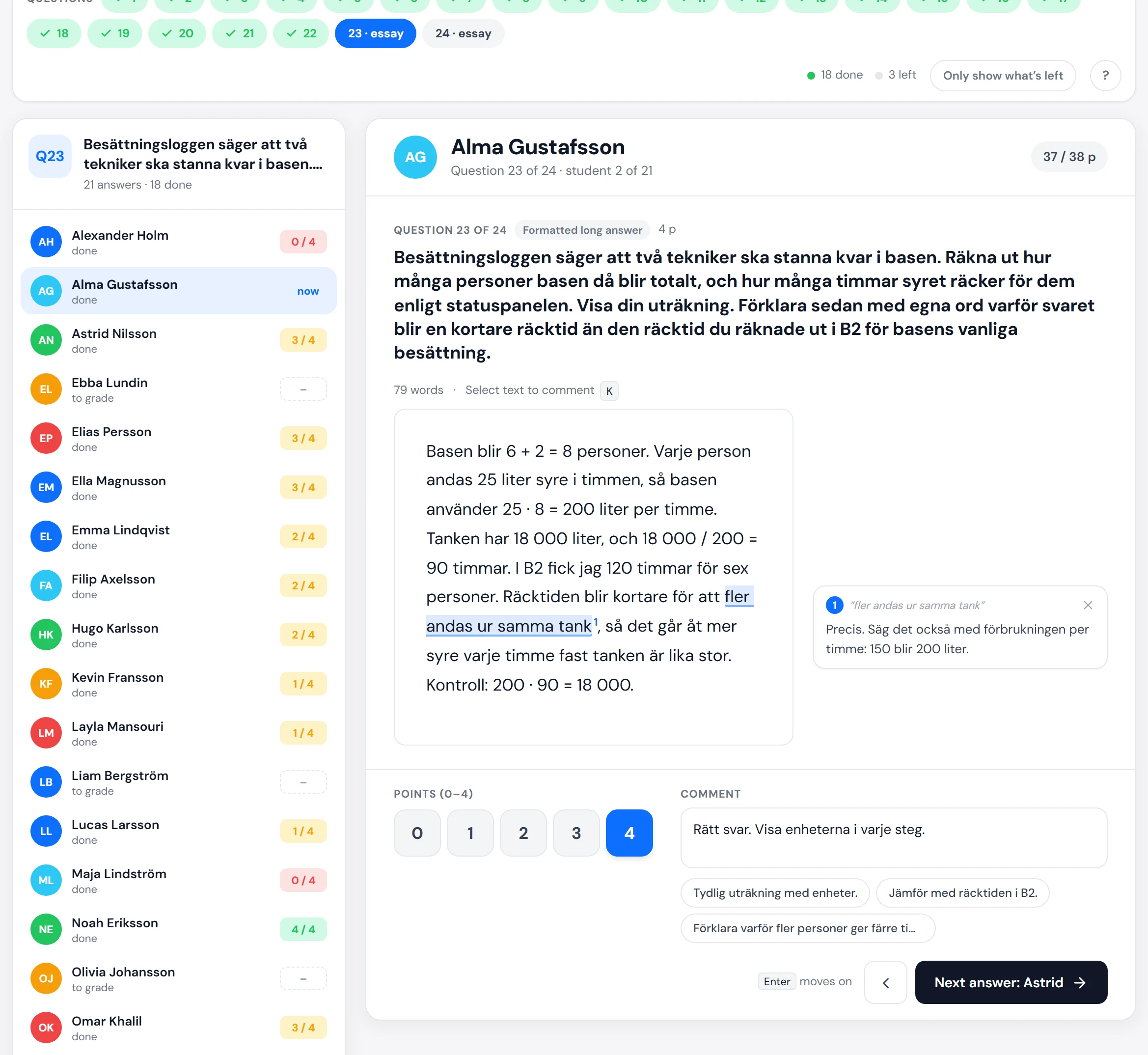
Grade
Question by question through the whole class, so you mark alike, or pupil by pupil, one exam at a time. Select text and write in the margin.
Hand back
Pupils see their marked exam under My exams, with your comments where they belong. You choose whether the total shows.
Save & records
Points per pupil, as Excel or PDF, or one row at a time to paste into the school platform. What you need when grades are set.
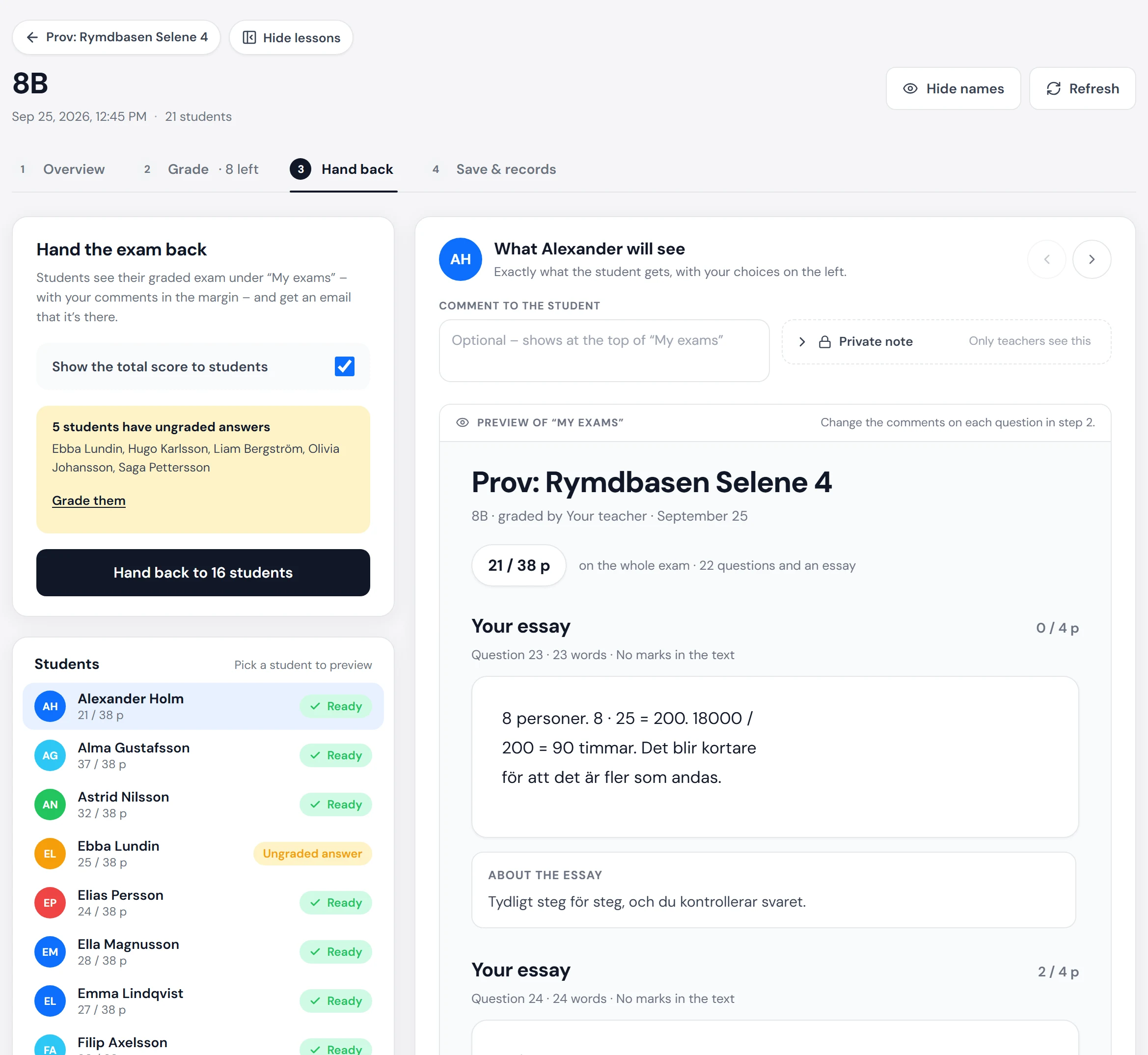
Hand back
You see exactly what the pupil gets before you hand it back.
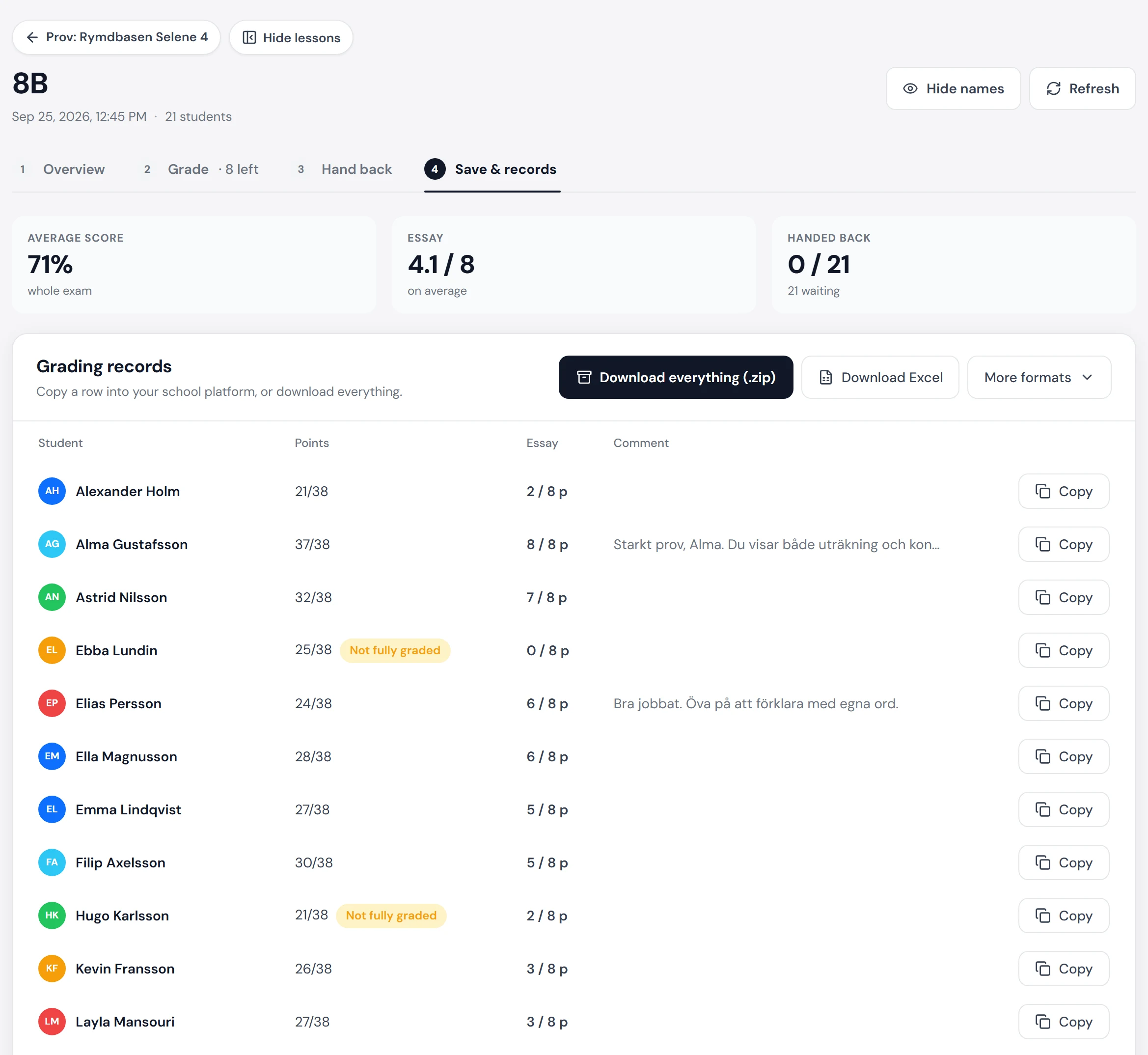
Save & records
Copy a row and paste it into the school platform, or download everything.
By question or by pupil
Switch whenever you like. What you have marked stays marked.
Comments in the text
Select a sentence and write. The pupil sees the comment in the margin.
Hide the names
Mark without seeing who wrote it, and show the names again when you are done.
Points, not grades
The record is points per pupil. You set the grade.
06For IT
One kiosk app in Google Admin. Set up once, for every exam.
Managed Chromebooks
Add the exam app as a kiosk app
Connect the Focuspilot extension to the kiosk app
Check the organisational unit
No technology stops all cheating. Viafocus makes it hard to cheat and easy to see.
07A light comparison
How exam tools lock a Chromebook. Most use the same method: Google's kiosk mode.
| Tool | How a Chromebook is locked | Source |
|---|---|---|
| Viafocus | Kiosk app, added by URL. Started from the same Lock menu as the lessons. | This page |
| Digiexam | Kiosk app on managed Chromebooks. | support.digiexam.se |
| Inspera | A web app (PWA) that runs in ChromeOS kiosk mode, on managed Chromebooks. | support.inspera.com |
| Trelson | Kiosk app for exams. There is also a Chrome extension, which locks the browser only. | support.trelson.com |
| Exam.net | Several security levels. The highest runs in a kiosk app on managed Chromebooks. | support.exam.net |
| Dugga | Kiosk app the pupil starts from the sign-in screen. | web.dugga.com |
Details on other vendors come from their own pages, September 2026.
08Questions and answers
What teachers and IT usually ask.
Short answers.
More questions?
Talk to our teamThe tests are on paper — Skolverket's test platform is not used. But the essay parts in Swedish, Swedish as a second language and English must be written on a computer, and the school then has to make sure the pupil cannot reach the internet or other services. That is what locked mode does.
Yes, it always is. No technology stops all cheating. In kiosk mode there are no tabs and no other apps, and in the live view you see what happens while the pupils write.
Answers are saved all the time. If the network drops, they stay on the pupil's computer and are sent when it is back. If they arrive after the test has closed, they go to the teacher, who decides whether they count. The pupil carries on on the same computer.
Only if you turn it on. Show students their result starts off.
Add one kiosk app in Google Admin, once. The Chromebooks need to be managed and have the Chrome Education Upgrade licence.
Not in locked mode today. Locked exams are available on Chromebook.
No. Exams are part of the school licence. Nothing is sold as an add-on.